 Akrivos
How to Use a Proxy on Android: Step-by-Step Setup Guide
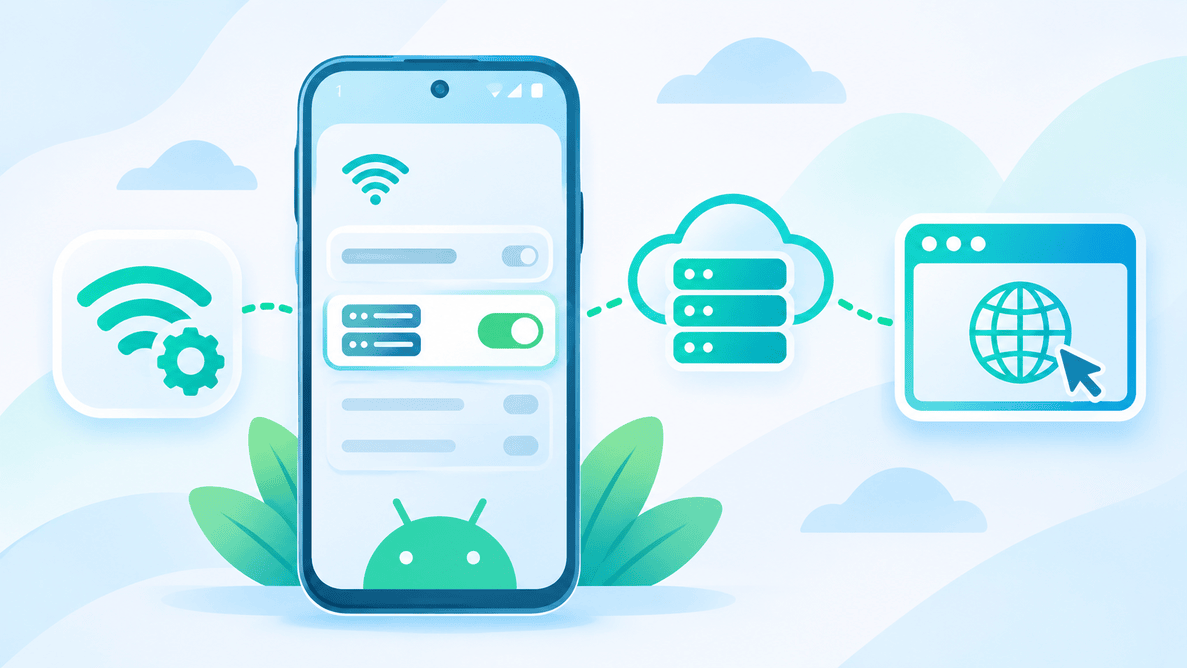
Learning how to use proxy on Android is straightforward once you know where the network settings are and which connection method you need. On most recent Android phones, you can configure a proxy through the advanced options of an individual Wi-Fi network. You will need the proxy hostname, port and, depending on the provider, an authentication method.
This guide explains how to set up a proxy, how the available configuration options work, and what to do when a connection fails. It also covers the difference between Wi-Fi configuration, mobile data, browser-based access and Android Studio.
If you are new to the subject, start with this explanation of what a free web proxy is and how it works.
What Is an Android Proxy Server and How Does It Work?
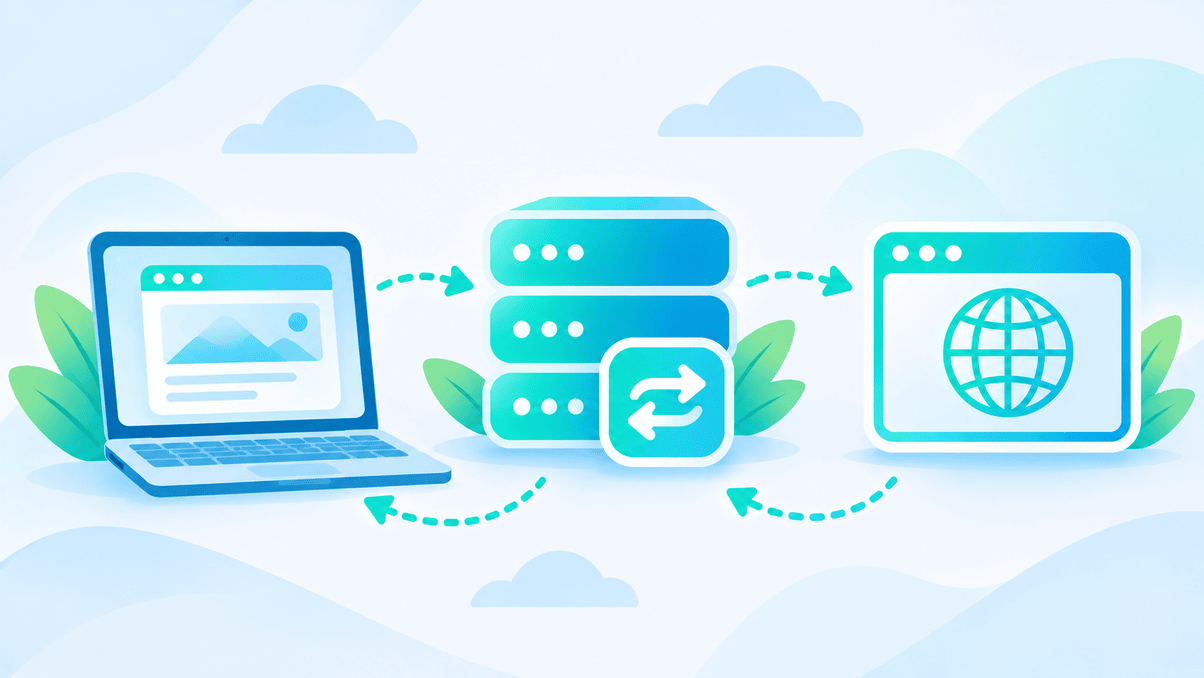
A proxy server is an intermediary between your device and a destination website or online service. Instead of connecting directly, a supported application sends its request through the intermediary. The server forwards the request and returns the response.
Depending on the configuration, the destination website may see the proxy's IP address rather than the public IP address associated with your connection. However, this does not automatically make your activity anonymous or encrypt every connection.
There are different proxy types, including residential proxies, datacenter proxies and mobile proxies. They differ in the networks and IP addresses they use, their performance characteristics and their intended use case.
For a basic Android proxy setup, the most important information is the server address and port. Some providers also require a username and password or another form of authentication.
What You Need Before You Set Up Proxy on Android
Before changing your proxy settings, obtain the connection details from your provider or network administrator. Do not guess these values.
Prepare the following:
Proxy hostname or IP address: The address of the proxy server.
Port: The numerical port supplied with the connection details.
Username: Your account or connection username, if authentication is required.
Password: The corresponding password, if required.
Configuration URL: Only needed when your provider supplies an automatic proxy configuration file.
Bypass list: Optional addresses or domains that should connect directly rather than through the proxy.
Check which protocol your provider supports. Android's native Wi-Fi configuration is primarily designed for HTTP proxy settings. If you need SOCKS5 or a particular authentication method, you may need an application that explicitly supports it.
Also confirm whether your provider supports your chosen network. A Wi-Fi configuration does not necessarily apply when you switch to mobile data.
How to Configure Proxy Settings on Android for Wi-Fi
The standard method is to edit the advanced settings of the Wi-Fi network you want to use. Menu labels can differ between manufacturers and Android versions, but the general process is similar.
Step-by-step Android proxy setup
Open Settings on your Android phone.
Select Network & internet.
Tap Internet or Wi-Fi, depending on your device.
Find the network you are connected to.
Tap its gear icon or select the edit option.
Open Advanced options if it is displayed.
Find the Proxy setting.
Change the selection from None to Manual.
Enter the proxy hostname in the relevant field.
Enter the port supplied by your provider.
Add any bypass addresses if your network administrator has provided them.
Save the changes.
Your device should now attempt to route supported requests through the configured server when connected to that Wi-Fi network.
Google documents a similar process for Pixel phones: open Network & internet, select Internet, choose the network, edit its advanced options, select the configuration type under Proxy and save. The precise menu names may vary across devices.
Manual, automatic and none: Which option should you choose?
Android Wi-Fi settings may offer several configuration choices:
Manual: You enter the hostname and port yourself. Choose this when your provider has supplied fixed connection details.
Proxy Auto-Config: You enter a PAC configuration URL. The script determines when requests should use the proxy.
None: No proxy is configured for that Wi-Fi network.
Choose the method that matches the details you received. Do not enter a server hostname into the PAC URL field or a configuration URL into the manual hostname field.
How to Enter the Proxy Server Address, Port and Login Details
The hostname and port identify where your connection should be directed. For example, a provider might supply a hostname such as proxy.example.com and a port such as 8080. These are illustrative values, not working server credentials.
Enter the hostname and port exactly as supplied. A typing error can prevent the connection from working.
One limitation is worth understanding before you continue: Android's standard Wi-Fi proxy screen does not provide the same username and password fields found in every dedicated proxy client. If your proxy requires username-and-password authentication, check whether your provider supports an IP allowlist, an app-based configuration or another compatible method.
Do not assume that entering credentials into an unrelated Android field will authenticate the connection. Ask your provider which authentication method is supported.
Can You Set Up a Proxy on Android Using Mobile Data?
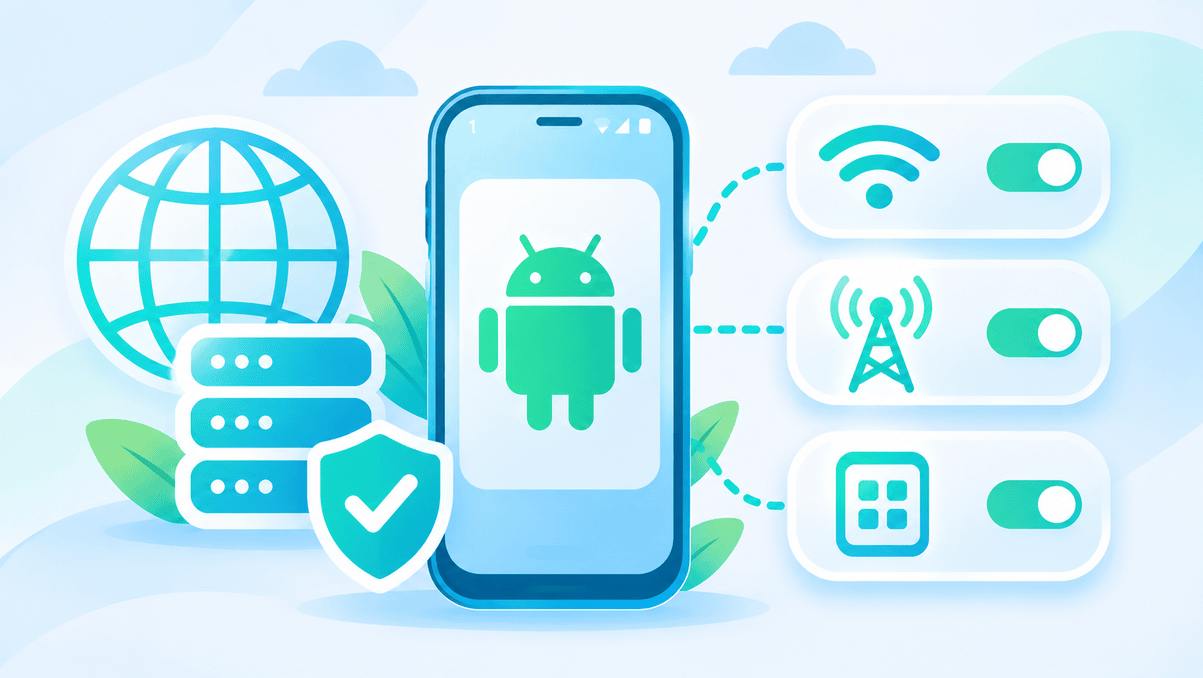
The standard Wi-Fi proxy menu is associated with a particular wireless network. It is not a universal setting for every connection on the phone.
Mobile data uses a different configuration path. Some Android devices and carriers expose an Access Point Name, or APN, menu under mobile network settings. However, APN fields and available options depend on the carrier and device. An APN proxy field is not a universal replacement for the Wi-Fi proxy setting.
If you need a proxy while using cellular data, check whether your provider supplies a compatible mobile application or connection method. Do not change carrier APN values unless you have the correct details from the carrier or service provider. Incorrect settings can interrupt mobile connectivity.
How to Use Android Proxies Without Root Access
You do not normally need root access to configure a proxy for a supported Wi-Fi connection. The standard network settings are available to ordinary users on compatible devices.
However, there is an important distinction between configuring one network and routing every application through a proxy. Some apps respect the system proxy, while others use their own networking configuration or ignore the system setting.
If your goal is simply to access a website through a browser-based service, a web proxy may be easier than changing the entire network configuration. You can compare the options in this guide to the best free web proxies.
Choosing Between Residential, Datacenter and Mobile Proxies
Different proxy types suit different requirements. The right choice depends on the website, application, connection method and provider's terms.
Residential proxies use IP addresses associated with residential internet connections. They may be useful when a task requires this type of network identity, but performance and availability vary.
Datacenter proxies use IP addresses hosted in data centres. They can offer consistent performance for suitable workloads, although some websites may identify or restrict datacenter traffic.
Mobile proxies use IP addresses associated with mobile network connections. Their suitability depends on the provider, network coverage and the application being used.
These categories describe the origin of the IP address, not a guarantee of privacy, reliability or compatibility. Check the provider's documentation before purchasing a service or changing your network configuration.
Android System Proxy vs Android Studio Emulator Proxy
Developers sometimes configure a proxy for testing an application rather than ordinary browsing. Android Studio introduces a separate distinction between the Android System Proxy and the Emulator Proxy.
The Android System Proxy is useful when inspecting application traffic during development. Browsers and many applications use the system configuration, but some apps may ignore it. It primarily handles HTTP and HTTPS traffic.
The Emulator Proxy is designed for situations such as accessing the internet from behind a corporate firewall. It forwards TCP traffic through the configured proxy and does not provide the same HTTPS inspection functionality.
Android Studio also has its own HTTP proxy settings for IDE operations such as downloading updates and libraries. These settings should not be confused with the proxy configuration on a physical Android phone.
For detailed instructions, consult the official Android Developers emulator proxy documentation.
How to Check Whether Your Android Proxy Is Working
After saving the configuration, test the connection before relying on it.
Confirm that your phone is connected to the Wi-Fi network you edited.
Open a browser and visit a reputable IP-checking website.
Compare the displayed public IP address with the address shown before configuration.
Try opening a few ordinary websites.
If the connection fails, temporarily disable the proxy and check whether normal browsing returns.
A changed public IP address can indicate that browser traffic is reaching the internet through a different exit point. It does not prove that every application uses the proxy or that your traffic is fully protected.
If the address does not change, check the hostname, port, provider status and authentication method. Also confirm that the website you are testing is not using an independent connection method.
Common Android Proxy Problems and How to Fix Them
Websites stop loading: Check the hostname and port, confirm the server is online and make sure the selected configuration type matches the information from your provider.
The connection works on Wi-Fi but not mobile data: This is expected when the configuration applies only to the selected Wi-Fi network. Check for a compatible mobile-data method instead of assuming the Wi-Fi setting will carry over.
Some applications work while others do not: Applications can handle network connections differently. Some respect the system proxy; others use their own settings or do not support it.
Authentication fails: Verify the username and password with your provider. If the Android network screen does not support the required login method, use a compatible client or another supported authentication option.
The connection becomes slow: Test the same website with the proxy disabled. Distance to the server, network congestion, provider capacity and the destination website can all affect performance.
You cannot find the setting: Search Settings for “proxy” or check the connected Wi-Fi network's advanced options. Manufacturer interfaces and Android versions can use different menu labels.
Frequently Asked Questions About How to Use Proxy on Android
1. Which proxy is best for Android?
The best option depends on what you need to do. For basic browsing, a browser-based service may be sufficient. For a particular application or network, you may need a provider that supports the required protocol and authentication method. Residential, datacenter and mobile proxies serve different purposes, so compare compatibility, privacy terms, performance and support before choosing. Avoid assuming that a free service is automatically secure or that every provider works with every Android application. Google's Android network settings guidance explains the built-in configuration available on supported devices.
2. Is a proxy better than a VPN?
A proxy and a VPN serve different purposes. A proxy forwards supported requests through another server, while a VPN creates an encrypted connection between your device and a VPN endpoint. A proxy configured for one Wi-Fi network should not be assumed to protect every application or all device traffic. A VPN is generally the more appropriate tool when your goal is device-wide traffic protection, although the provider and configuration still matter. Consider what you need to protect before choosing. The Electronic Frontier Foundation's surveillance self-defence resources explain important privacy and security considerations.
3. How do I activate a proxy on my Android phone?
First obtain the hostname and port from your provider. Open Settings, go to Network & internet, select Internet or Wi-Fi, and choose the connected network. Open its editing or advanced options, find Proxy, select Manual and enter the supplied details. Save the changes and test a website. The exact menu names can vary by manufacturer and software version. If your provider supplied a PAC URL instead, select Proxy Auto-Config rather than Manual. Google's Pixel proxy setup instructions provide an official example of this process.
4. How do I find my proxy server address on my phone?
Your phone usually does not discover a provider's proxy address automatically. You need to obtain it from the service dashboard, setup email or network administrator. If a proxy is already configured, open the connected Wi-Fi network's advanced settings and inspect the Proxy section. You may be able to see the hostname and port there, depending on the device and configuration. If the settings are managed by an employer or school, ask the administrator before changing them. Google's Android network settings guide explains where advanced network options are located.
5. How do I set up a proxy on Android for Wi-Fi or mobile data?
For Wi-Fi, open the connected network's advanced settings, choose Manual under Proxy and enter the hostname and port supplied by your provider. Save the changes and test the connection. Mobile data is different: the Wi-Fi proxy configuration does not automatically apply to cellular connections. Some devices and carriers expose APN settings, but you should only change these with verified carrier or provider instructions. Another option may be a compatible application that supports your required connection type. Google's Pixel network configuration instructions describe the Wi-Fi setup process.
6. How can I check that my Android proxy is working?
Start by connecting to the network for which you configured the proxy. Open a browser and use a reputable IP-checking service to compare the displayed public address with your original connection. Then visit several ordinary websites to check that browsing works. If the connection fails, verify the hostname and port, check whether the provider requires authentication and confirm that the server is available. Remember that a successful browser test does not prove that every application is using the same route. The Android Developers emulator networking guide explains how proxy behaviour can differ between applications and emulator configurations.
7. Do Android proxy settings apply to all apps?
No. You should not assume that one Wi-Fi proxy setting controls every application on your device. Many browsers and applications use the Android system proxy, but some applications ignore it or use their own network configuration. The built-in Wi-Fi setting is also associated with the selected network, rather than automatically covering every connection method. If a specific application needs a proxy, check its own network settings or documentation. This is especially important when testing business applications or development builds. The Android Developers documentation explains the difference between system proxy behaviour and emulator-level routing.
8. How do I fix common Android proxy connection problems?
Begin with the simplest checks. Confirm that Wi-Fi or mobile connectivity works without the proxy, then verify the hostname, port and configuration type. Check whether your provider requires authentication that the native Android screen cannot enter. If only one application fails, it may not support the system proxy. If all browsing stops, return to the Wi-Fi settings and temporarily select None to restore the direct connection. You can then contact the provider with the error message and device details. Google's Android network settings help is a useful reference when locating the relevant controls.
9. Can I use a proxy on Android without an app or root access?
Yes, for supported Wi-Fi connections, Android includes a native proxy configuration option, so root access is not normally required. You can enter the server hostname and port in the advanced settings of the selected network. However, this built-in option has limitations. It may not support the protocol or authentication method required by your provider, and it does not guarantee that every application will use the configured route. If you need SOCKS5 or application-specific routing, check for a compatible client. Google's official Pixel instructions show the standard built-in setup.
10. Will using a proxy slow down my connection or use more data?
It can affect performance, but the result depends on the provider, server location, network conditions and destination website. A distant or overloaded server may increase response times. Some services may also compress or process content differently, which can affect data usage, although a proxy does not automatically reduce your mobile data consumption. Compare performance with and without the connection under similar conditions. If speed is important, choose a provider with suitable capacity and a server location that meets your needs. Google's Android network guidance also explains how to review network usage and connection settings.
Conclusion: Choosing the Right Android Proxy Setup
The right configuration depends on whether you need a proxy for one Wi-Fi network, a particular application, mobile data or development testing. For ordinary Wi-Fi use, Android's built-in manual option is a practical starting point. For other connection types, check protocol support and authentication requirements before making changes.
For simple browser-based access without changing your phone's network configuration, you can explore BrowserProxy. Review the service's capabilities and privacy information to decide whether it suits your browsing needs.